I recently moved into a new apartment and faced a challenge when setting up the network: the ISP handoff was in a coat closet that didn’t have enough room for my network rack (but also, who wants to keep their network rack in an entryway closet?). Ideally, I wanted the rack to be in the office, and luckily the closet and the office share a wall. The simple solution would be to add an ethernet run between the closet and the office to get the WAN connection from the ISP handoff to the rack. But there was one complication: the closet had an ethernet drop to the living room that I wanted to utilize. So, I needed the single cable between the closet and the office to carry both the WAN connection back to the rack, and a LAN connection for uplinking the living room. I’ve read discussions about using VLANs to backhaul a WAN connection back to the main server rack and figured that’d work great for my use case.
The Background
Before diving in, let me cover a few concepts. Most importantly, VLANs. VLANs allow you to make multiple ‘virtual’ (the V in VLAN) networks that are all running on the same hardware. They’re important because in networking we often want to keep traffic segregated and unable to mingle, but setting up multiple (some networks run dozens or hundreds of VLANs) different physical networks is impractical and inefficient.
With VLANs, a few specific concepts are important. First is assigning a VLAN to a port. When a port is assigned an individual VLAN, it means the switch is going to ’tag’ (assign) that VLAN to all traffic entering the network from that port. This means the device that gets plugged into a VLAN assigned port needs no awareness of the VLAN. From the device’s POV, it only sees the other devices on its VLAN, but nothing from the rest of the network.
The alternative to a port being VLAN assigned (and typically the default port state) is that it’s ’trunked.’ A trunked port is allowed to carry traffic from all VLANs and does not modify the VLAN that traffic is tagged with. This allows one ethernet cable to carry traffic from multiple VLANs, which is exactly what we need.
Finally, the WAN port of a router or gateway is special. That port is designed to be the line between ‘inside the network’ and ‘outside the network.’ The WAN port on many gateway devices can’t be remapped or reconfigured. You typically must plug your WAN connection into the WAN port. This means we need a way to bring the WAN connection directly to that port. In this case we’re going to use a patch cable between a VLAN assigned port and the WAN port.
So what’s the plan? We’re going to put a ‘managed’ (capable of handling VLANs) switch in the closet and connect it back to our primary switch in the rack (via a single cable). Then we’re going to use VLANs to keep WAN traffic separate from LAN traffic on that one cable. Back in the rack, we’re then able to assign a port to the same ‘WAN’ VLAN on that side and run a patch cable between that port and the WAN port on the gateway. From both the gateway and the ISP’s POV, the two devices are directly connected.
The How
So let’s get into what setting this up looks like. A quick disclaimer: I use UniFi gear for my network and will be sharing specifically how this is configured for UniFi. The concepts are widely applicable, but you might need to do some research on how exactly to set it up on your gear.
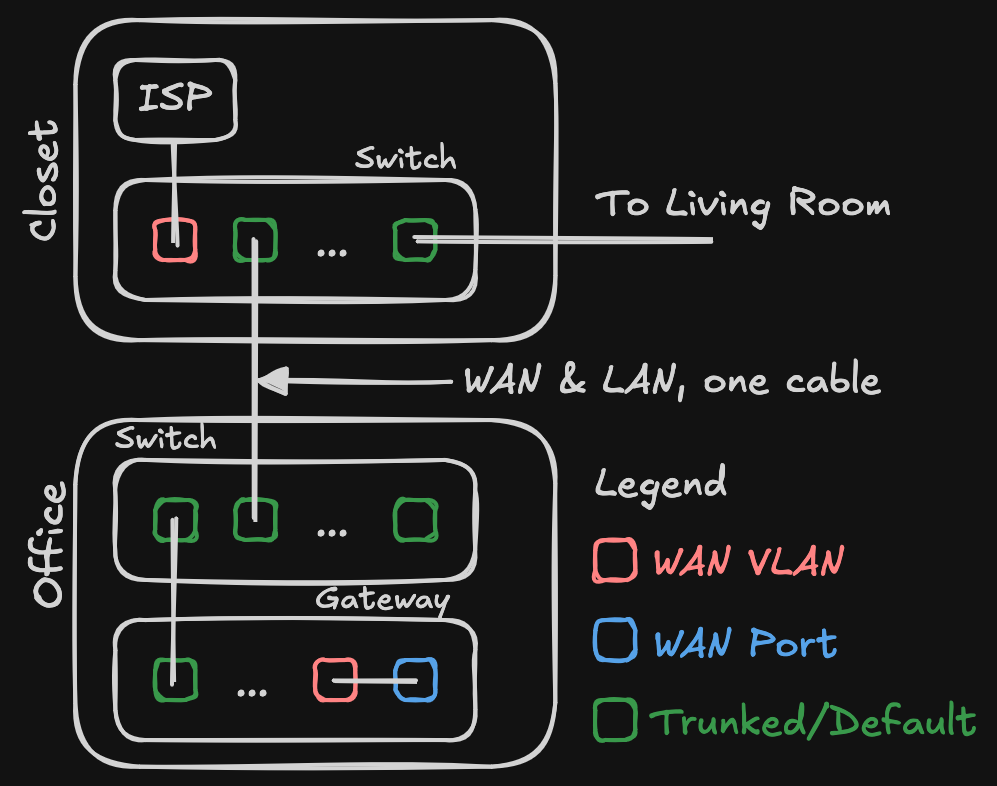
On the config side, I first created a new VLAN named WAN Backhaul and (importantly) set the Router setting to Third Party Gateway. This setting allows the ISP to handle DHCP and IP addressing on the VLAN, making the VLAN truly transparent. Neither side can ’tell’ they’re on a VLAN, it just looks like they’ve been directly connected with a cable. (The alternative would have UniFi trying to manage IP addresses on the VLAN, which wouldn’t make the ISP hardware very happy.) Then, in port settings for the USW Lite, I configured Port 7 to have a Native VLAN (UniFi’s terminology for assigning a VLAN to the port) of that WAN Backhaul network. I also selected Block All for the Tagged VLAN Management setting (this ensures no other VLANs can be used on this port). On the UDM Pro’s port settings, I configured Port 8 in the exact same way.
On the wiring side, it was pretty straightforward. I put a managed switch (a USW Lite 8 POE) in the coat closet. The ethernet run back to the rack and the run to the living room both went into any free port on the switch. The ISP hookup got Port 7 (since it’s the one we configured above). Back at the rack, the run from the closet switch was hooked up to a free port on my primary switch in the rack (no special config needed since this is the trunked connection). Finally (and crucially), I added a patch cable between Port 8 and Port 9 (the WAN port!) on the UDM Pro. This is our faux WAN connection and closes the path between the ISP hookup in the closet, and the WAN port on our gateway.
Gotchas
With all that setup, it mostly just worked. Initially, the link between Ports 8 and 9 on the UDM negotiated to FE instead of GbE speeds, and speed tests on the network to the internet were showing reduced speeds. I reseated the patch cable between those ports, which solved the issue. The link came up at GbE, and speed tests were showing the symmetric gig speeds I get from my ISP (AT&T typically gives me mid-900s Mbps, not quite the full GbE).
Another gotcha is that the UniFi Network Topology view (unsurprisingly) doesn’t really know how to handle this kind of setup. The USW Lite has two clients displaying on Port 7 (not sure why this is actually), and there is no line between the USW Lite and the WAN side of the UDM. These are purely visual glitches, and the setup works fine regardless.
I set this up a few weeks ago and it’s been running flawlessly since. Through some networking magic we managed to have the ISP hookup and the network’s WAN connection in different rooms, and neither side can tell they’re not just directly connected via a cable. It felt like a clever solution to an odd little problem, and was a fun excuse to finally use VLANs.